FIVEWIN Login – Account Sign In Guide for H5 & Web
The FIVEWIN Login page allows registered users to access their accounts by entering a username and password. Whether using a mobile browser or desktop computer, the sign in process provides a straightforward way to access the platform. This guide explains how to log in, use the Remember Password option, recover account access and resolve common login issues. New users can also navigate to the registration page to create an account before signing in.
FIVEWIN Login – How to Sign In to Your Account
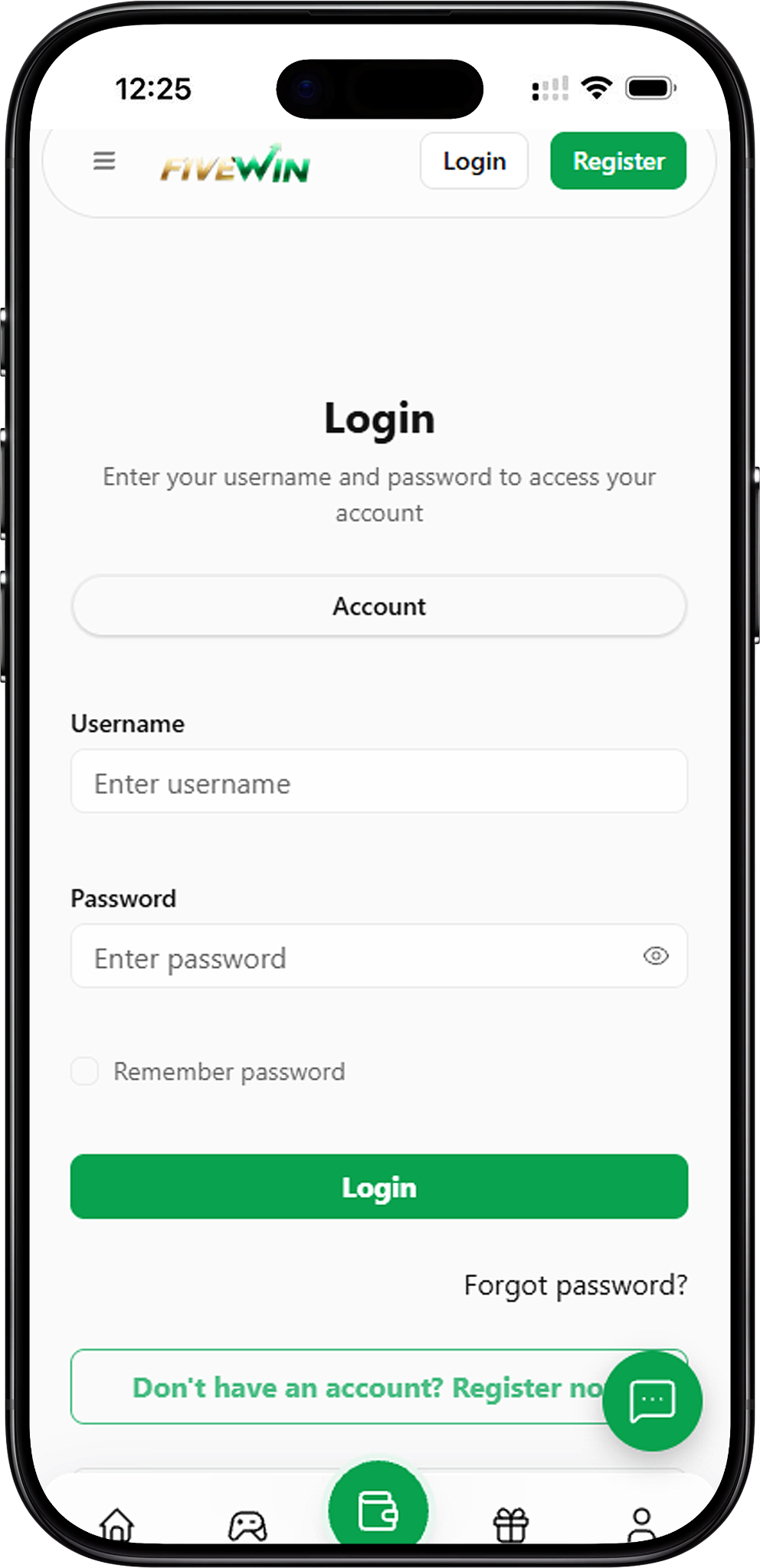
Registered users can access their accounts through the login page using their existing username and password. The form includes an Account section, username and password fields, a Remember Password checkbox and a Login button. Follow the steps below to complete the sign in process.
Step 1: Open the Login Page
Visit the FIVEWIN website and select the Login option to open the account sign in page. The login form displays the required fields for entering your account credentials. Make sure you are accessing the intended website before continuing.
Step 2: Enter Your Username
Locate the Username field and enter the username associated with your registered account. Check the spelling carefully to ensure that the information matches your registration details.
Step 3: Enter Your Password
Type your account password into the Password field. The password is hidden by default, but you can select the eye icon beside the field to view your entry and check for typing errors.
Step 4: Select Remember Password (Optional)
The login form includes a Remember Password checkbox. You can select this option if you want to use the password remembrance feature offered by the login interface. For security, avoid enabling this option on shared or public devices.
Step 5: Click the Login Button
After entering your username and password, click the green Login button to submit your credentials. If the information is accepted, you can proceed to your account.
Step 6: Access Your Account
Once you have successfully signed in, you can continue using the account features available on the platform. If you cannot access your account, check your credentials or use the Forgot Password option for assistance.
Access Your Account Through H5 & Web
The login page can be accessed through a compatible web browser on mobile devices and computers. This allows users to open the website and enter their account credentials without following a separate registration process for each device. The available interface and layout may vary depending on the browser and screen size.
Sign In Through a Mobile Browser (H5)
Open a compatible browser on your Android smartphone, iPhone or iPad and visit the FIVEWIN website. Navigate to the Login page, enter your registered username and password, then select Login. The mobile browser interface allows users to complete the sign in process directly from their devices.
Sign In Through a Desktop Web Browser
Open a web browser on your Windows or macOS computer and navigate to the website. Select Login, enter your account credentials and click the Login button. Make sure your browser is updated and your internet connection is stable for a smoother experience.
Using the Same Account Across Devices
Users can enter their registered account credentials when accessing the login page from a compatible device. Always verify that you are visiting the intended website and avoid entering your password on unfamiliar or untrusted pages.
Understanding the Login Page Features
The login interface includes several options designed to help users enter their credentials, manage password visibility and navigate between account-related pages. Understanding these features can make the sign in process easier.
Username and Password Fields
The Username and Password fields are used to enter the credentials associated with your account. Both fields should be completed before selecting Login. Make sure the entered information matches the details used during registration.
Password Visibility Icon
An eye icon appears beside the Password field. Selecting this icon allows you to view the password you have entered, making it easier to identify typing mistakes. Hide your password again when using a device where other people may be able to see your screen.
Remember Password Option
The Remember Password checkbox is available below the password field. This option is intended to help users remember their login information. Avoid selecting it when signing in from a shared computer or public device.
Forgot Password Link
The Forgot Password link appears below the Login button. Users who cannot remember their account password can select this option to access the available password recovery process.
Register Now Option
Users who do not have an account can select Don’t Have an Account? Register Now to open the registration page. The registration form allows new users to create a username, set a password and complete the required phone verification process.
Back to Home Button
The Back to Home button allows users to leave the login page and return to the website’s homepage. This option is useful for visitors who want to explore the platform before signing in.
How to Recover a Forgotten Password
If you cannot remember your account password, the login page provides a Forgot Password option. This link allows users to begin the available account recovery process instead of repeatedly attempting to sign in with an incorrect password.
Step 1: Open the Login Page
Visit the website and navigate to the Login section. Locate the Forgot Password link displayed below the Login button.
Step 2: Select Forgot Password
Click Forgot Password to open the available password recovery process. Follow the instructions presented on the screen to continue.
Step 3: Follow the Account Recovery Instructions
Complete the requested recovery steps according to the information displayed. The required details may depend on the account recovery options available on the platform.
Step 4: Return to the Login Page
After successfully completing the password recovery process, return to the login page. Enter your username and updated password, then click Login to access your account.
Common Login Problems & Troubleshooting
Login difficulties can occur because of incorrect credentials, forgotten passwords, browser issues or unstable internet connections. The following troubleshooting suggestions can help users identify common problems before attempting to sign in again.
Incorrect Username or Password
If your login details are rejected, check that your username and password have been entered correctly. Look for spelling mistakes, extra spaces and incorrect characters. Passwords may be case-sensitive, so verify your use of uppercase and lowercase letters.
Forgotten Account Password
If you cannot remember your password, select the Forgot Password link on the login page. Follow the available recovery instructions instead of repeatedly entering an incorrect password.
Login Page Not Loading
If the login page does not load, check your internet connection and refresh the browser. You can also try accessing the website through another compatible browser or device.
Login Button Not Responding
If clicking Login does not produce the expected result, confirm that both the Username and Password fields contain the required information. Refresh the page if necessary and try again.
Unable to Access Your Account After Signing In
If you encounter an issue after submitting your login details, review any messages displayed on the screen. Check your internet connection and confirm that your credentials are correct. If the problem continues, contact the available customer support channel for assistance.
Account Access & Security Tips
Keeping your account credentials secure is an important part of using any online platform. Simple precautions can help reduce the risk of unauthorized access and protect your personal information when signing in.
Keep Your Password Private
Do not share your account password with other people. Avoid sending your password through messages or entering it on websites that you do not recognize.
Use a Strong Password
Choose a password that is difficult to guess and avoid using easily identifiable personal information. When creating an account, follow the password requirements displayed on the registration page.
Avoid Saving Passwords on Shared Devices
The Remember Password option may be convenient on a personal device, but it should be avoided on public or shared computers. This helps reduce the possibility of other users accessing your account information.
Check the Website Before Signing In
Before entering your username and password, verify that you are visiting the intended website. Be cautious of unfamiliar links or pages requesting your login credentials.
Protect Your Account When Using Public Devices
If you access your account from a shared device, avoid saving your credentials and make sure you sign out when you have finished. Close the browser session when appropriate to help protect your account information.
Frequently Asked Questions About Login
Find answers to common questions about account sign in, mobile and desktop access, password recovery and login page features.
How do I log in to my FIVEWIN account?
Visit the login page, enter your registered username and password, then click the Login button. If your credentials are accepted, you can proceed to your account.
Can I access my account through an H5 mobile browser?
The login page can be opened through a compatible mobile browser. Visit the website on your smartphone, navigate to Login and enter your account credentials to sign in.
Can I sign in using a desktop computer?
Yes. Open the website through a compatible desktop browser, navigate to the login page and enter your registered username and password.
What should I do if I forget my password?
Select Forgot Password on the login page and follow the available account recovery instructions. Once the recovery process is complete, return to the login page and enter your updated credentials.
What is the Remember Password option?
Remember Password is an optional checkbox displayed on the login form. It is intended to help users remember their login information. For security, avoid using this option on shared or public devices.
Can I view my password while typing?
Yes. The Password field includes an eye icon that allows you to show or hide the entered password. This can help you check for typing mistakes before signing in.
Do I need to register before logging in?
Yes. You need an existing account to sign in. If you have not registered, select Register Now on the login page to open the registration form and create an account.
Why are my login credentials not working?
Incorrect usernames, passwords or typing errors may prevent a successful login. Check your credentials carefully and use the Forgot Password option if you cannot remember your password.
Can I return to the homepage without logging in?
Yes. The login interface includes a Back to Home button that allows visitors to return to the homepage without submitting their login details.
What should I do if the login page is not working?
Check your internet connection, refresh the page and try another compatible browser if necessary. If the issue continues, use the available customer support channel for assistance.
Access Your FIVEWIN Account
Ready to sign in? Open the login page, enter your registered username and password, and access your account. If you are a new user, complete the registration process before logging in.