FIVEWIN Download – Installation Guide for Android, iOS & Desktop
The FIVEWIN Download guide explains how to install or create convenient access to the platform on Android smartphones, iPhones, iPads and desktop computers. Users can follow the installation instructions provided for their device, including adding the website to the home screen or installing a supported web application. Whether you use a mobile browser or a Windows or macOS computer, this guide covers the available installation steps, device-specific instructions and common setup questions.
- 1. FIVEWIN Download – Choose Your Device
- 2. Android Download Steps – Install on Your Smartphone
- 3. iOS Download Steps – Install on iPhone & iPad
- 4. Desktop Download Steps – Windows & macOS
- 5. Understanding App Installation & Home Screen Shortcuts
- 6. Common Installation Problems & Solutions
- 7. Frequently Asked Questions About Download & Installation
FIVEWIN Download – Choose Your Device
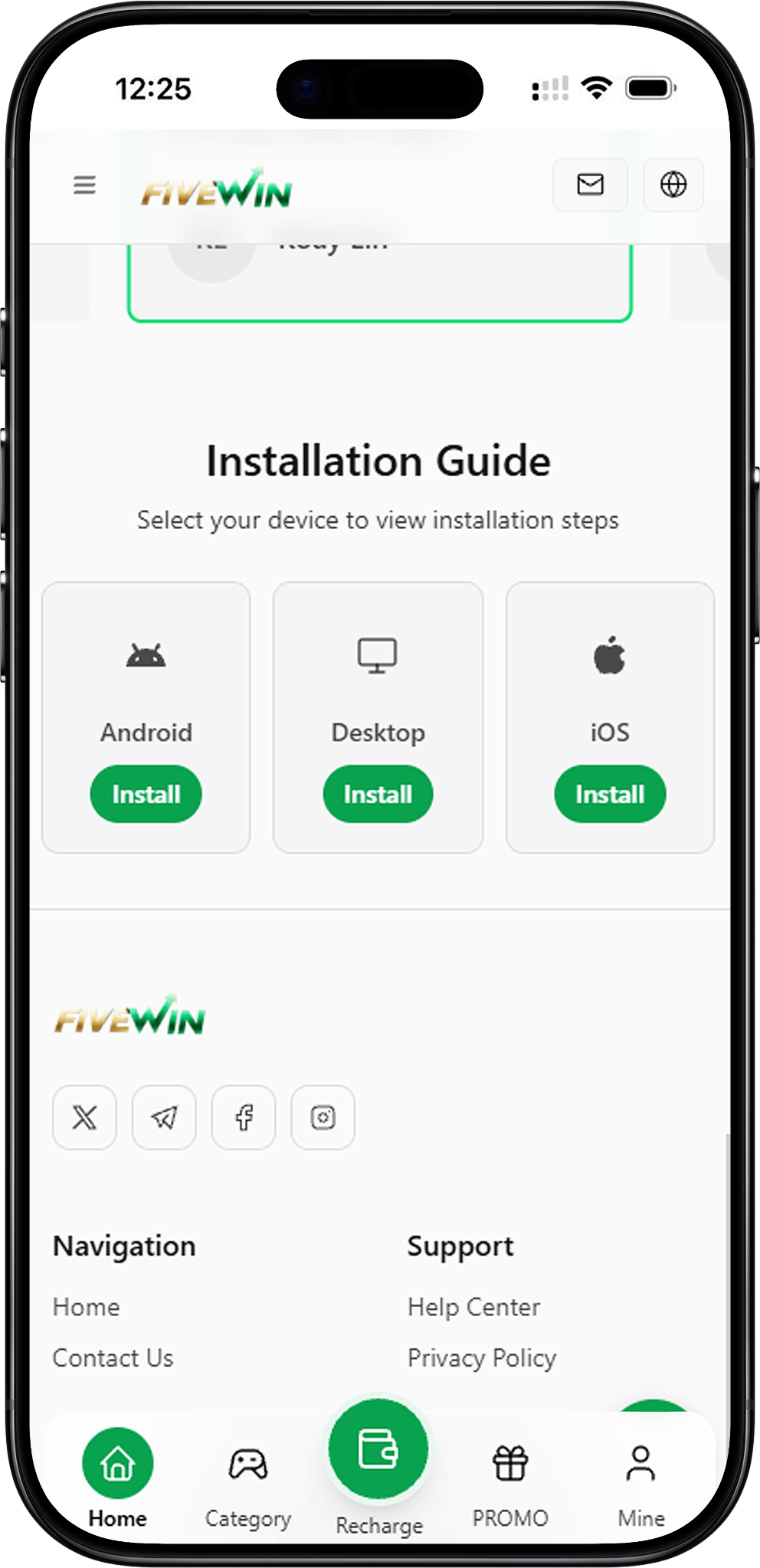
The Installation Guide provides three device options: Android, Desktop and iOS. Each option includes an Install button that opens the corresponding setup instructions. Select the device you are using and follow the steps displayed on the screen. Installation options may differ depending on your operating system, browser version and supported website features.
Android Installation
Android users can follow the mobile browser instructions to add the website to their home screen or install it as a supported web application. The process involves opening the browser menu, selecting Add to Home screen and confirming the available installation option.
iOS Installation
iPhone and iPad users can use Safari to add the website to their home screen. The process involves opening the Share menu, selecting Add to Home Screen and confirming the shortcut. This provides convenient access without repeatedly entering the website address.
Desktop Installation
Desktop users can follow the installation guide through a compatible browser on Windows or macOS. When the browser offers an installation button, users can select it and confirm the installation. The available options depend on browser support and website compatibility.
Android Download Steps – Install on Your Smartphone

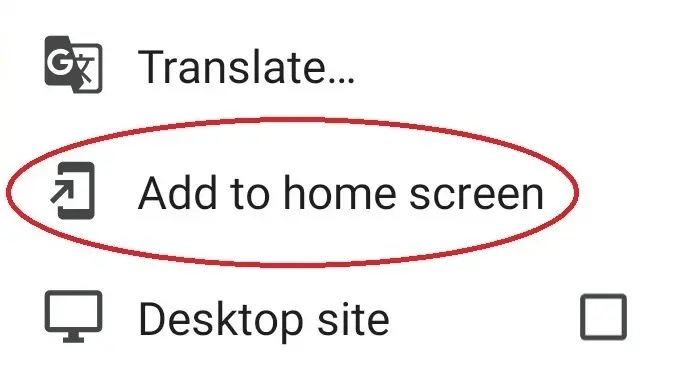
Android users can set up convenient access to the platform through a compatible mobile browser such as Google Chrome. The installation guide shows three main steps: opening the browser menu, selecting Add to Home screen and confirming the installation. Depending on your browser version and the website’s supported features, you may see an option to install a web app or create a home screen shortcut.
Step 1: Open the Browser Menu
Open Google Chrome on your Android smartphone and visit the FIVEWIN website. Once the page has loaded, tap the three-dot menu or browser settings icon near the upper-right corner of the screen. This opens the browser menu containing additional website options.
Step 2: Select Add to Home Screen
Scroll through the browser menu and select Add to Home screen. Depending on your Chrome version and the website’s available features, the browser may display Install app instead. Select the relevant option to open the installation or shortcut confirmation dialog.
Step 3: Confirm Installation
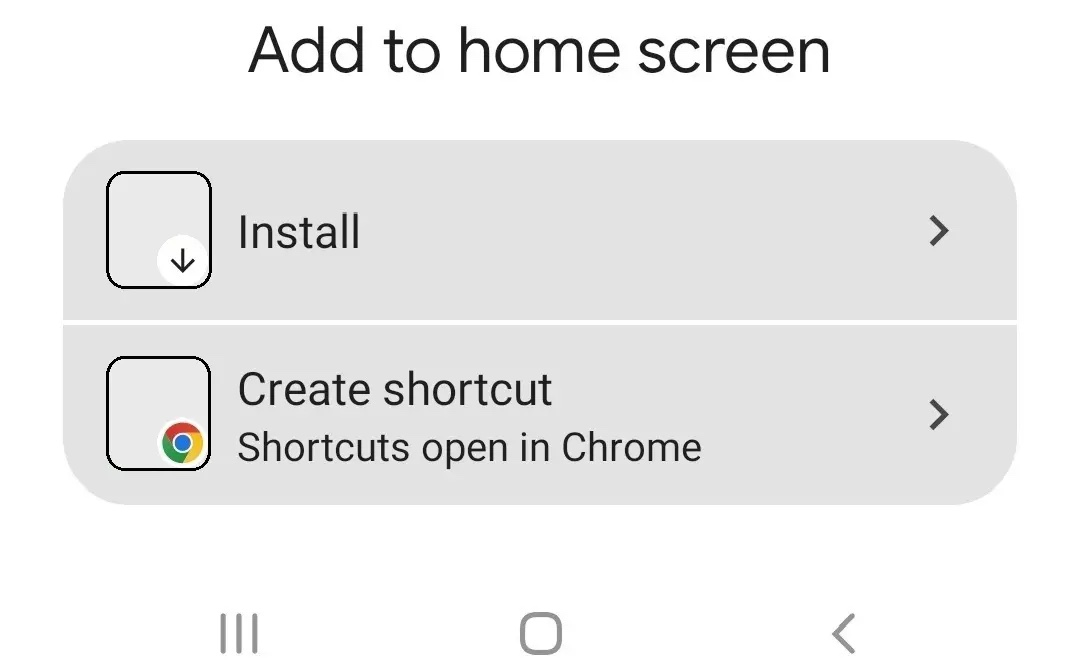
When the confirmation dialog appears, select Install if the browser offers a web app installation. If the browser provides a Create shortcut option instead, follow the displayed instructions to add the website shortcut to your home screen. The exact wording may vary depending on your device and browser.
Step 4: Open the Website from Your Home Screen
After completing the setup, return to your Android home screen and locate the newly added icon. Tap the icon to open the platform. If you created a shortcut, the website will generally open through your browser. If a supported web app was installed, it may open in a separate app-style window.
Important Note for Android Users
Google Chrome may display Install app instead of Add to Home screen when a website supports installation as a web application. Some devices may also offer Create shortcut. These options can behave differently, so follow the confirmation instructions shown on your device. The illustrated process does not require downloading a separate APK file.
iOS Download Steps – Install on iPhone & iPad
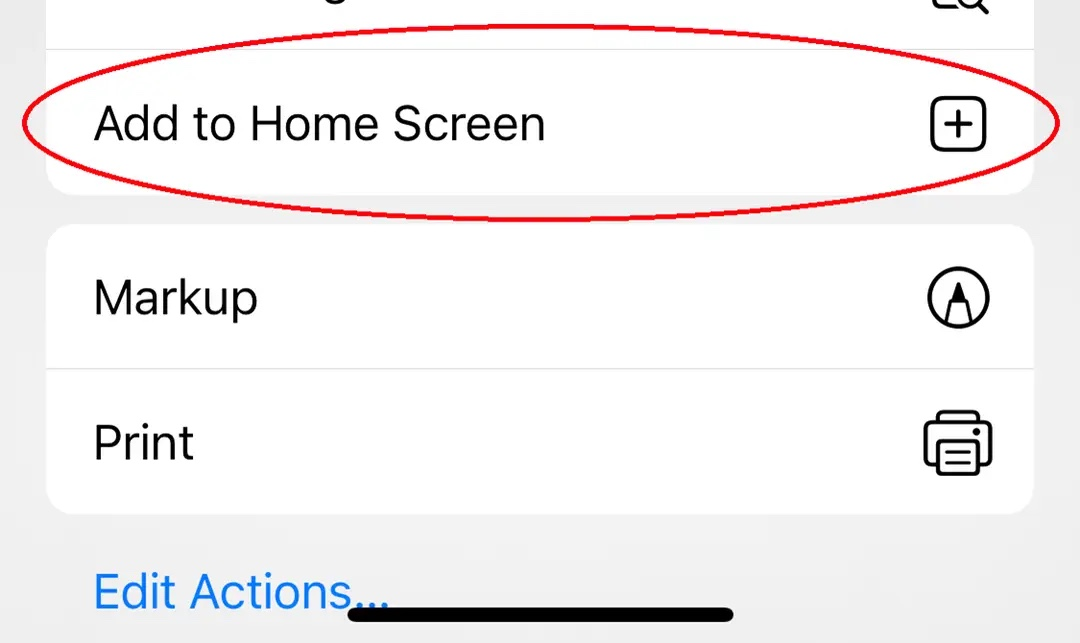
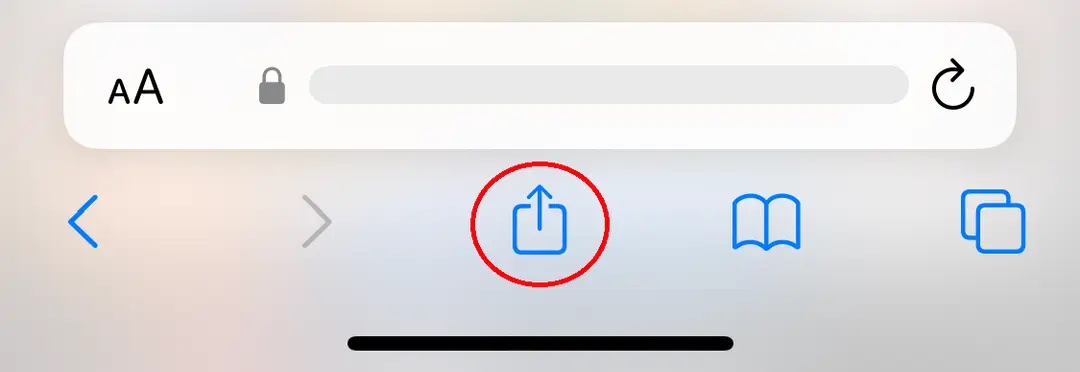
iPhone and iPad users can add the website to their home screen using Safari. The illustrated installation guide shows three steps: opening the Share menu, selecting Add to Home Screen and confirming the action. This creates convenient access to the website directly from the device’s home screen.
Step 1: Open Safari and Tap the Share Button
Launch Safari on your iPhone or iPad and visit the FIVEWIN website. Once the page has loaded, locate the Share button, represented by a square with an upward-pointing arrow. Depending on your Safari version and device layout, the button may appear near the bottom or top of the browser interface. Tap it to open the sharing options.
Step 2: Select Add to Home Screen
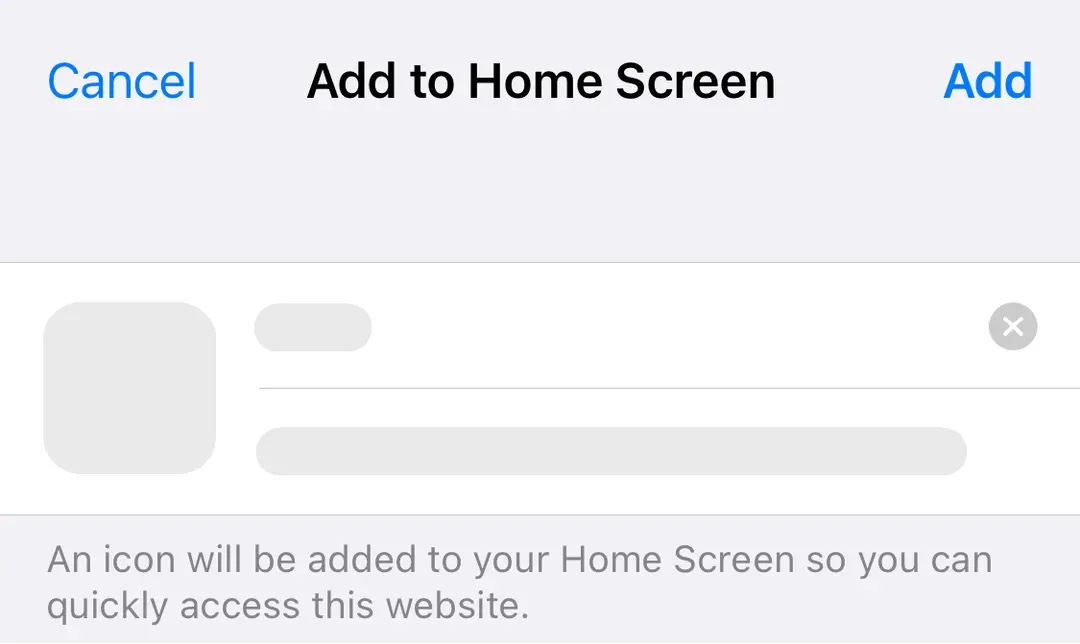
Scroll through the Safari Share menu until you find Add to Home Screen. Tap this option to open the home screen shortcut confirmation page. If the option is not immediately visible, check the available actions in the Share menu.
Step 3: Tap Add to Confirm
Review the shortcut details displayed on the confirmation screen, then tap Add. Safari will create a home screen icon for the website. Once the process is complete, return to your device’s home screen to locate the newly added icon.
Step 4: Launch from Your Home Screen
Tap the new home screen icon to access the website. Depending on the website’s configuration and your iOS version, it may open in an app-style interface or through Safari. You can continue using the available platform features through the supported interface.
Important Note for iPhone & iPad Users
The illustrated iOS process uses Safari’s Add to Home Screen feature. It does not demonstrate an Apple App Store download or a separate iOS installation package. The available shortcut behavior may vary depending on your device, operating system and website configuration.
Desktop Download Steps – Windows & macOS
Users accessing the platform through a Windows or macOS computer can follow the desktop installation guide when their browser supports website installation. The illustrated process contains two main steps: selecting the installation button near the browser address bar and confirming the installation. If the installation option is unavailable, users can continue accessing the website directly through their browser.
Step 1: Open the Website in a Desktop Browser
Launch a compatible browser on your Windows or macOS computer and visit the FIVEWIN website. Wait for the page to load completely. The availability of desktop installation depends on the browser and whether the website supports installation as a web application.
Step 2: Locate the Desktop Install Button
Check the right side of the browser address bar for an installation icon or button. If the browser offers this option, click it to open the installation confirmation dialog. Some browser versions may place the installation option inside the browser menu instead.
Step 3: Click Install to Confirm
When the installation dialog appears, review the information displayed and click Install. If the browser supports the installation, it will complete the setup and make the web application available through the operating system’s supported app access options.
Step 4: Launch the Installed Web Application
After installation, open the application using the available desktop shortcut, application launcher or browser-provided access option. The exact location depends on your operating system and browser.
Installing on Windows
On Windows, compatible browsers such as Google Chrome or Microsoft Edge may offer website installation when supported. Open the website and look for an Install option in the address bar or browser menu. If available, follow the confirmation steps to complete the setup.
Installing on macOS
On macOS, compatible browsers may provide an installation option for supported websites. Open the website and check the browser’s available installation features. If the option appears, follow the displayed instructions. Depending on your macOS version, Safari may also offer Add to Dock for supported websites.
Important Note for Desktop Users
Not every browser displays a desktop installation button. If the option is unavailable, you can continue using the website through your browser or create a standard bookmark for easier access. Installing a supported web application is different from downloading a traditional Windows executable or macOS application package.
Understanding App Installation & Home Screen Shortcuts
The installation options shown in the guide primarily involve browser-based website access. Depending on the device and browser, users may install a supported web application or create a shortcut that opens the website. Understanding the difference can help users choose the appropriate setup method.
What Is a Web Application?
A web application is a website designed to provide an app-like experience through a compatible browser. When installation is supported, the browser may allow users to launch the website from a dedicated icon or application window. Available features depend on the website’s configuration and browser capabilities.
What Is a Home Screen Shortcut?
A home screen shortcut is an icon that provides direct access to a website. Instead of manually entering the website address each time, users can tap the shortcut to open the corresponding page. Shortcuts are commonly available through mobile browser options such as Add to Home screen.
Is a Home Screen Shortcut the Same as an Installed App?
Not necessarily. A home screen shortcut generally opens the website through a browser, while an installed web application may provide a separate app-style interface. Both options can offer convenient access, but their behavior depends on the device, browser and website support.
Do You Need an APK File on Android?
The Android installation instructions shown in this guide use browser-based installation or shortcut creation. They do not require users to download a separate APK file. Follow the installation method displayed on the website rather than downloading installation files from unfamiliar sources.
Do You Need the Apple App Store on iOS?
The illustrated iOS instructions use Safari’s Add to Home Screen feature. This method does not require downloading an application from the Apple App Store. Users can follow the browser instructions to create a home screen icon for the website.
Common Installation Problems & Solutions

Installation options may differ across devices, browsers and operating system versions. If you cannot find an installation button or complete the setup, the following suggestions may help identify the issue.
Add to Home Screen Is Missing on Android
If Add to Home screen does not appear in your browser menu, check whether the browser offers Install app instead. Make sure you are using a compatible browser and that the website has loaded correctly. The available menu options may vary between browser versions.
Install App Is Not Available
If the Install app option is missing, the browser or website may not support installation in the current environment. You can continue accessing the website through your browser or use an available shortcut option.
Add to Home Screen Is Missing on iPhone
If you cannot find Add to Home Screen, make sure you are using Safari and check the Share menu. Scroll through the available actions to locate the option. Browser interface differences and operating system versions may affect where the option appears.
Desktop Install Button Does Not Appear
If the desktop installation icon is not visible, check the browser menu for an available installation option. If no installation feature is offered, continue using the website directly through your browser. You may also save a bookmark for convenient access.
Home Screen Icon Does Not Appear
If you cannot find the new icon after completing the setup, check your device’s home screen pages or available application locations. You can also repeat the shortcut creation process and confirm that the final Add or Install action was completed.
Website Does Not Open After Installation
If the installed web application or shortcut does not open, check your internet connection and try accessing the website directly through your browser. If the website works normally in the browser, you may try recreating the shortcut or repeating the supported installation process.
Installation Process Stops Unexpectedly
If the installation process does not complete, close the confirmation dialog and reload the website. Check that your browser is updated and try again. If the problem continues, use the website through your browser or consult the available customer support channel.
Frequently Asked Questions About Download & Installation
Find answers to common questions about installing the platform on Android, iPhone, iPad, Windows and macOS devices, including browser compatibility, home screen shortcuts and web application installation.
How do I download FIVEWIN on Android?
Open the website in a compatible Android browser, access the browser menu and select Add to Home screen or Install app, depending on the available option. Follow the confirmation instructions to complete the setup.
Can I install the website on my iPhone?
Yes. Open the website in Safari, tap the Share button, select Add to Home Screen and confirm by tapping Add. This creates a home screen icon for convenient access.
Can I add the website to my iPad home screen?
Yes. The Safari Add to Home Screen feature is available on compatible iPad devices. Open the website, access the Share menu and follow the displayed shortcut instructions.
Is there a desktop installation option?
The installation guide includes a desktop setup method. When supported by the browser and website, users can select the installation button near the address bar and confirm the installation.
Can I install the web app on Windows?
Compatible Windows browsers may offer web application installation when the website supports it. Open the website and check the address bar or browser menu for an available Install option.
Can I install it on macOS?
Compatible browsers on macOS may support website installation or shortcut creation. The available options depend on the browser, operating system version and website configuration.
Do I need to download an APK file?
No APK file is required for the Android browser-based installation method shown in the guide. Users can follow the Add to Home screen or Install app instructions provided by their browser.
Is the iOS installation available through the App Store?
The illustrated installation method uses Safari’s Add to Home Screen feature rather than an Apple App Store download. The guide does not establish the availability of a separate App Store application.
Why does Chrome show Install app instead of Add to Home screen?
Chrome may display Install app when a website supports installation as a web application. The available option depends on the browser version and website configuration.
What is the difference between Install and Create Shortcut?
Install may create a supported web application that opens in an app-style window, while Create Shortcut generally adds an icon that opens the website through a browser. The exact behavior depends on the device and browser.
Can I access the website without installing anything?
Yes. You can open the website directly through a compatible browser without creating a home screen shortcut or installing a web application.
What should I do if installation fails?
Check your internet connection, refresh the website and confirm that your browser supports the selected installation method. If the issue continues, access the website directly through your browser or use the available customer support channel.
Set Up FIVEWIN on Your Device
Choose Android, iOS or Desktop to view the installation instructions for your device. Follow the available browser steps to install a supported web application or create a convenient shortcut for accessing the website.