FIVEWIN Register – Create an Account & Complete Sign Up
The FIVEWIN Register process allows new users to create an account by entering a username, setting a password and verifying their mobile phone number. Users can also enter an optional invite code during registration. Whether accessing the registration page directly or through a QR code, the sign up process provides a straightforward way to set up an account. This guide explains the required information, registration steps, phone verification and how to access FIVEWIN after completing registration.
- 1. FIVEWIN Register – How to Create a New Account
- 2. FIVEWIN Sign Up – Registration Requirements
- 3. FIVEWIN QR Code – Alternative Registration Method
- 4. FIVEWIN Invite Code – How to Use an Invitation Code
- 5. FIVEWIN Phone Verification – Complete Account Registration
- 6. How to Log In After FIVEWIN Registration
- 7. Common FIVEWIN Registration Issues & Solutions
- 8. Frequently Asked Questions About FIVEWIN Register
FIVEWIN Register – How to Create a New Account
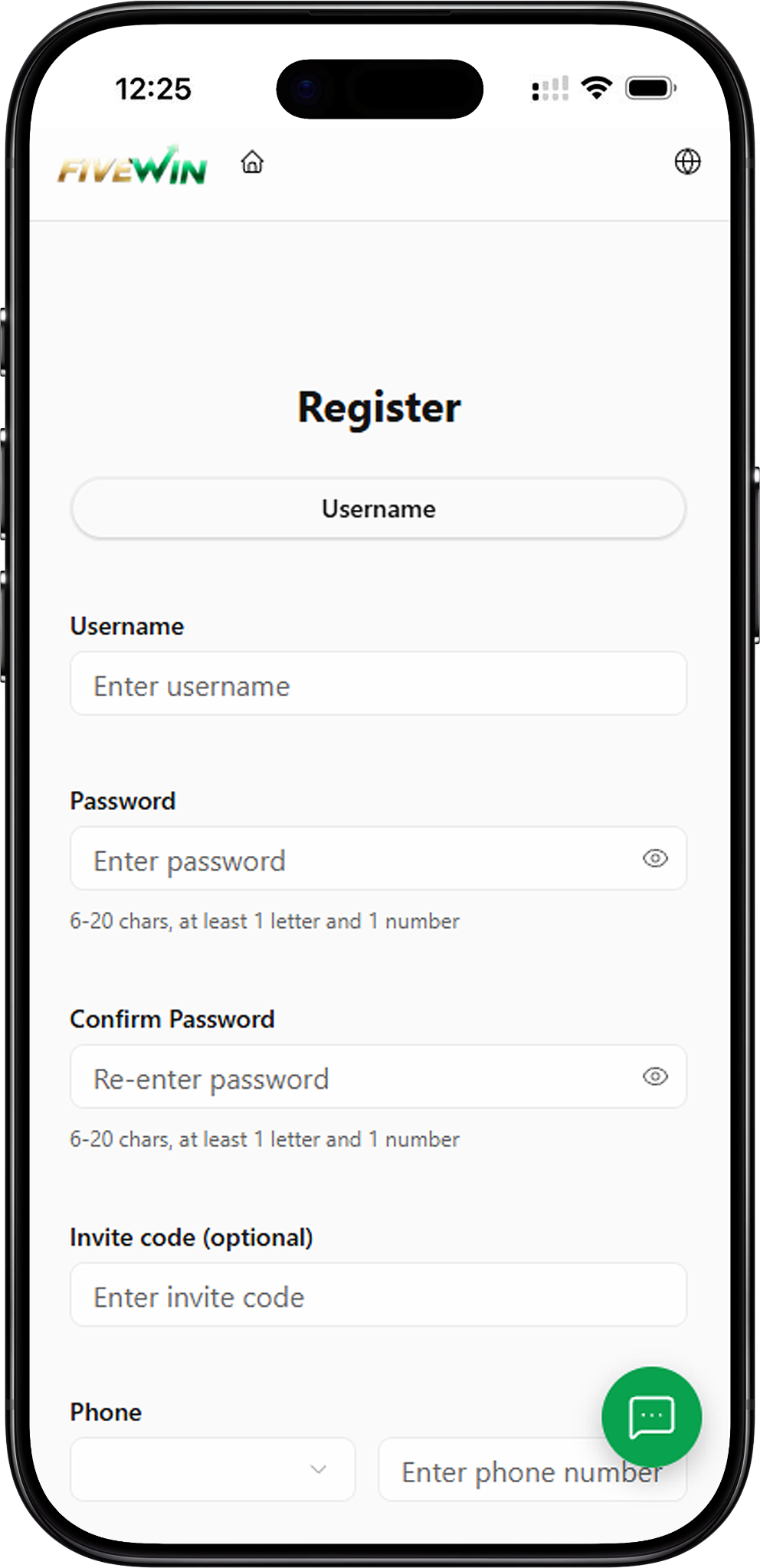
Creating a FIVEWIN account involves entering your registration details, confirming your password and verifying your mobile phone number. The registration form includes fields for a username, password, confirm password, optional invite code, phone number and phone verification code. Follow the steps below to complete the registration process.
Step 1: Open the FIVEWIN Registration Page
Visit the FIVEWIN website and navigate to the Register page. The registration form will appear with the required account information fields. Make sure you are using the intended website before entering your personal details.
Step 2: Enter Your Username
Locate the Username field and enter your preferred account username. This username will be used to identify your FIVEWIN account when signing in. Check that the information is entered correctly before continuing.
Step 3: Create Your Account Password
Enter a password in the Password field. Your password must contain 6–20 characters, including at least one letter and one number. Choose a password that is difficult for others to guess and avoid sharing it with anyone.
Step 4: Confirm Your Password
Enter the same password again in the Confirm Password field. Both password entries must match to complete this part of the registration form. You can use the password visibility icon to check your entries before proceeding.
Step 5: Enter an Invite Code (Optional)
If you have received a FIVEWIN invite code, enter it in the Invite Code field. This field is optional, so users without an invitation code can leave it blank and continue with the remaining registration steps.
Step 6: Enter Your Mobile Phone Number
Locate the Phone section and select the appropriate country or calling code from the dropdown menu. Enter your active mobile phone number in the field provided. Make sure the number is correct because it will be used for phone verification.
Step 7: Request a Phone Verification Code
Find the Phone Verification Code section and click Get Verification Code. A verification code will be requested for the mobile number you entered. Wait for the code to arrive, then enter it in the verification field.
Step 8: Read and Accept the Platform Agreement
Before submitting your registration, review the Platform Agreement available through the registration form. Tick the agreement checkbox to confirm your acceptance of the platform’s terms and conditions.
Step 9: Complete FIVEWIN Registration
Review your username, password, invite code (if provided), mobile number and verification code. Once all required information has been entered correctly and the agreement has been accepted, click the Register button to submit your registration. Follow any additional instructions displayed on the screen.
FIVEWIN Sign Up – Registration Requirements
Before starting the FIVEWIN sign up process, prepare the information required to complete the registration form. Providing accurate details can help prevent registration errors and reduce difficulties during phone verification.
Username and Account Password
New users must create a username and password during registration. The password must be between 6 and 20 characters and contain at least one letter and one number. The same password must be entered in the Confirm Password field to ensure both entries match.
Active Mobile Phone Number
A mobile phone number is required for registration verification. Select the appropriate country or calling code and enter your phone number correctly. You will need access to this number to receive the verification code requested during registration.
Optional Invitation Code
The registration form includes an optional Invite Code field. Users who have received an invitation code can enter it during sign up. If no code is available, the field can be left empty.
Platform Agreement Acceptance
Users must review and accept the Platform Agreement before submitting the registration form. The agreement is accessible through the link displayed beside the confirmation checkbox. Read the relevant terms carefully before proceeding.
FIVEWIN QR Code – Alternative Registration Method
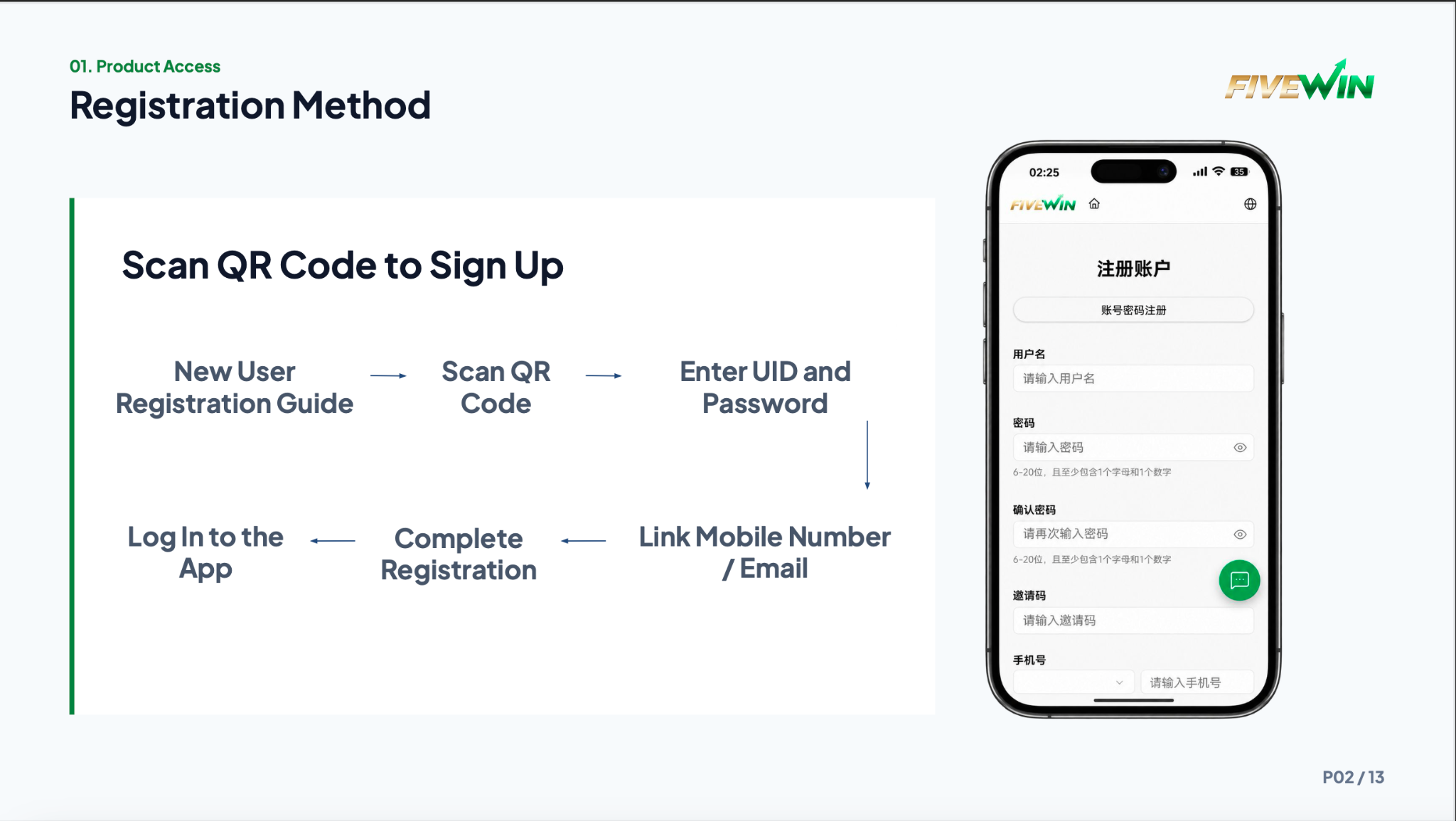
FIVEWIN registration information also describes a QR code sign up method for new users. This method allows users to access the registration process by scanning a provided QR code with a compatible mobile device. After opening the registration page, users can enter their account details and complete the required verification steps.
Step 1: Access the Registration QR Code
Locate the FIVEWIN registration QR code provided through an appropriate registration guide or invitation source. Before scanning, check that the QR code comes from a source you trust.
Step 2: Scan the QR Code
Open your smartphone camera or a compatible QR code scanner and point it at the registration QR code. When the registration link appears, select it to open the corresponding page in your mobile browser.
Step 3: Enter Your Registration Details
Once the registration page opens, enter your preferred username and create a password that meets the displayed requirements. Confirm your password and provide any additional required registration information.
Step 4: Link Your Mobile Phone Number
Enter your mobile phone number and complete the available verification process. The registration guide also references linking a mobile number or email address, but the registration form shown requires phone verification. Follow the fields displayed on your registration page.
Step 5: Complete Registration and Access Your Account
Review the information entered, accept the Platform Agreement and submit the registration form. After successful registration, proceed to the login page to access your account.
FIVEWIN Invite Code – How to Use an Invitation Code
The FIVEWIN registration form provides an Invite Code field for users who have received an invitation code. This field appears after the password confirmation section and before the phone number section. Entering an invite code is optional and is not required to complete the standard registration form.
Where to Enter a FIVEWIN Invite Code
During registration, locate the field labelled Invite Code (Optional). Enter the invitation code exactly as provided, checking that all letters and numbers are correct. Continue completing the remaining registration fields before submitting the form.
Can You Register Without an Invite Code?
Yes. The Invite Code field is marked as optional on the registration form. Users who do not have an invitation code can leave the field blank and proceed with their username, password and mobile phone verification.
What If Your Invite Code Is Incorrect?
If an invite code is not accepted, check whether it was entered correctly. Look for typing errors, missing characters or extra spaces. If the issue continues, contact the person who provided the code or consult the available FIVEWIN customer support channel.
FIVEWIN Phone Verification – Complete Account Registration
Phone verification is part of the FIVEWIN registration process. The registration form includes a Phone section and a Phone Verification Code field, allowing users to request a code for their mobile number. Completing this step helps confirm that the phone number entered during registration is accessible to the user.
Step 1: Select Your Country or Calling Code
Open the dropdown menu beside the Phone field and choose the appropriate country or calling code. Confirm that the selected code matches the mobile number you intend to use.
Step 2: Enter Your Mobile Number
Type your mobile phone number into the designated field. Check the number carefully before requesting a verification code to avoid sending the code to an incorrect number.
Step 3: Click Get Verification Code
Select the Get Verification Code button beside the verification field. Wait for the verification code to arrive through the available phone verification process.
Step 4: Enter the Verification Code
Enter the received code in the Phone Verification Code field. Check that the characters match the code you received before proceeding with registration.
Step 5: Submit the Registration Form
After entering the verification code, review your registration details and confirm your acceptance of the Platform Agreement. Click Register to submit the completed form.
How to Log In After FIVEWIN Registration
After completing the registration process, users can proceed to the FIVEWIN login page to access their accounts. The registration interface includes an Already Have an Account? Login Now option, which provides a direct way to navigate to the login section.
Step 1: Open the FIVEWIN Login Page
Select Login Now from the registration page or navigate to the Login section of the FIVEWIN website. The login page allows registered users to enter their account credentials.
Step 2: Enter Your Account Credentials
Enter the username and password associated with your registered account. Make sure the details match the information used during registration.
Step 3: Access Your FIVEWIN Account
Submit your login details using the available sign in option. If the credentials are accepted, you can proceed to your account. For additional information about signing in, visit the dedicated FIVEWIN Login page.
Return to the FIVEWIN Homepage
The registration interface also includes a Back to Home option. Users can select this button to return to the FIVEWIN homepage instead of continuing with registration or login.
Common FIVEWIN Registration Issues & Solutions
Some users may encounter difficulties while completing the registration form. Common issues include incorrect password formats, mismatched passwords, phone number errors and verification code problems. Reviewing the entered information can help identify possible causes before attempting registration again.
Password Does Not Meet the Requirements
If your password is not accepted, check that it contains between 6 and 20 characters, including at least one letter and one number. Avoid entering a password that does not meet the displayed requirements.
Password and Confirm Password Do Not Match
If the registration form indicates that your passwords do not match, re-enter the password in both fields. Use the password visibility icon if necessary to confirm that the entries are identical.
Phone Verification Code Not Received
If you do not receive a verification code, check that your country or calling code and mobile number are correct. Make sure your phone can receive messages and allow time for delivery. If another code request becomes available, follow the instructions displayed on the registration page.
Verification Code Is Incorrect
If a verification code is rejected, confirm that you entered the correct code without missing or changing any characters. If you have requested more than one code, use the latest valid code according to the instructions displayed.
Unable to Submit the Registration Form
If the Register button does not complete the process, check that all required fields have been filled in, the phone verification code has been entered and the Platform Agreement checkbox has been selected. Review any error messages displayed by the registration form.
Registration Page Does Not Load
If the registration page does not load properly, check your internet connection and refresh the page. You can also try opening the website in a compatible browser. If the problem continues, use the available FIVEWIN customer support channel for assistance.
Frequently Asked Questions About FIVEWIN Register
Find answers to common questions about FIVEWIN account registration, sign up requirements, invite codes, QR code registration and phone verification.
How do I register a FIVEWIN account?
Visit the FIVEWIN registration page and enter your username, password, confirm password and mobile phone number. Request and enter the phone verification code, accept the Platform Agreement and click Register to submit your registration.
Is an invite code required for FIVEWIN registration?
No. The FIVEWIN registration form labels the Invite Code field as optional. Users can complete the standard registration process without entering an invitation code.
Can I sign up for FIVEWIN using a QR code?
FIVEWIN registration information includes a QR code sign up method. Users can scan a provided registration QR code to open the registration page, enter their account details and complete the required verification process.
What information is required for FIVEWIN sign up?
The registration form requires a username, password, password confirmation, mobile phone number and phone verification code. Users must also accept the Platform Agreement before submitting the form. An invite code can be entered if available.
What are the FIVEWIN password requirements?
The registration password must contain 6–20 characters, including at least one letter and one number. The same password must be entered in the Confirm Password field.
How do I get a FIVEWIN phone verification code?
Enter your mobile phone number with the appropriate country or calling code, then click Get Verification Code. Once you receive the code, enter it in the Phone Verification Code field to continue registration.
What should I do if I do not receive the verification code?
Check that your phone number and country or calling code are correct. Make sure your mobile device can receive messages and allow time for the code to arrive. Follow any available retry instructions or contact customer support if the problem continues.
Can I register without a mobile phone number?
The registration form shown includes a Phone field and requires a phone verification code. Users should follow the phone verification requirements displayed on the registration page.
Do I need to accept the Platform Agreement?
Yes. The registration form includes a checkbox for accepting the Platform Agreement. Users should read the agreement carefully and select the checkbox before submitting their registration.
How do I log in after registering?
After successfully registering, select Login Now on the registration page or visit the FIVEWIN Login page. Enter your registered username and password to sign in.
Create Your FIVEWIN Account Today
Ready to get started? Visit the FIVEWIN registration page to create your account. Enter your username, set a password, complete mobile phone verification and review the Platform Agreement before submitting your registration. If you already have an account, proceed to the login page instead.